User Manual
Version: v2.0.0
Introduction and Overview
The KeyLock Password Manager PRO is a professional-grade security tool designed to give you absolute control over your digital identity. Unlike other cloud-based managers that store your data on their servers, KeyLock is a local-first application where both the program and the encrypted database remain entirely under your jurisdiction.
The Importance of a Password Manager
In the modern digital landscape, using unique, complex passwords for every account is the only defense against "credential stuffing" attacks. A password manager eliminates the need to memorize dozens of complex passwords, allowing you to use high-entropy passwords that are impossible to guess.
Multiple Databases
KeyLock supports the creation of multiple SQLite databases. Although you can use a single database and incorporate Business, Personal, Secure Notes and any other Category you create and use the Search box to filter a single Category and Tags to filter even further down. For users who prefer separate "Business" credentials from "Personal" credentials you may still create multiple separate databases. Each database can have its own unique Master Password.
The KeyLock Benefit: Sovereign Control
Decentralized Storage:
-
You choose exactly where your database lives—whether on a local hard drive or your favorite Public cloud provider such as iCloud, Dropbox, Google Drive or OneDrive.
Multi-Platform:
-
By storing your database in public cloud services like Dropbox, Google Drive, or OneDrive, you can install KeyLock on multiple Windows machines such as your Desktop, Laptop or Work Computer and access your cloud database vault from anywhere.
Zero-Knowledge Security:
-
The application never transmits your master password or unencrypted data over the internet. Encryption and decryption happen solely on your local machine.
-
Because KeyLock uses AES-256-GCM in Galois/Counter Mode (GCM), your Master Password is the only key to the vault. If lost, the data is mathematically impossible to recover. We recommend using the "Password Hint" feature or keeping a physical copy of your master password in a safe or fireproof box.
-
KeyLock adheres to a strict Zero-Knowledge policy. Because the application does not have a "backdoor" and does not store your master password in any form, there is no recovery process. This is a deliberate security feature: if a recovery method existed for you, it would also exist for a hacker. You are the sole custodian of your data.
|
Warning
|
Losing your Master Password is permanent.
|
Security Architecture and Encryption
-
KeyLock is built on a "Hardened Security" model to ensure that even if your database file is stolen, the contents remain inaccessible.
Encryption Standards
-
AES-256-GCM: KeyLock Password Manger PRO utilizes AES-256 in Galois/Counter Mode (GCM). This provides both high-grade encryption and built-in authentication, ensuring the data has not been tampered with.
-
Argon2id Key Derivation: To defend against GPU and ASIC-based brute-force attacks, KeyLock Password Manger PRO employs Argon2id, the winner of the Password Hashing Competition. This memory-hard function is the current industry standard for secure key derivation.
-
HKDF (Key Stretching): KeyLock Password Manger PRO utilizes HMAC-based Extract-and-Expand Key Derivation Function (HKDF) to derive separate, distinct keys for encryption and authentication from your master secret.
-
AAD Metadata Binding: Using Authenticated Additional Data (AAD), KeyLock binds your database metadata (such as versioning and headers) to the encrypted payload. This prevents "copy-paste" attacks where metadata is swapped between different vaults.
-
The Database Structure:
-
The database is a SQLite file (.db) containing a vault table with the following columns: Title, Category, Tags, URL, Username, Password, Account, PIN, Tags & Notes.
-
salt: The unique random value used to derive your key.
-
data: The encrypted JSON blob containing your passwords and recycle bin.
-
hint: An optional, unencrypted text string to help you remember your password.
-
Interface Navigation
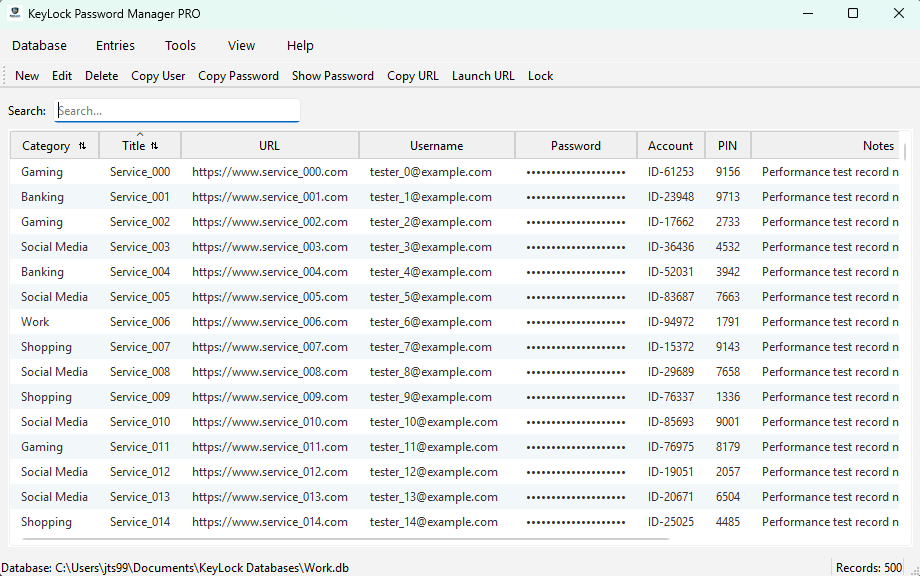
The interface is designed for high-efficiency security management, divided into five primary control zones: the Menu Bar, the Ribbon Toolbar, Status Bar, Mouse Right-Click Menu and the Table view.
-
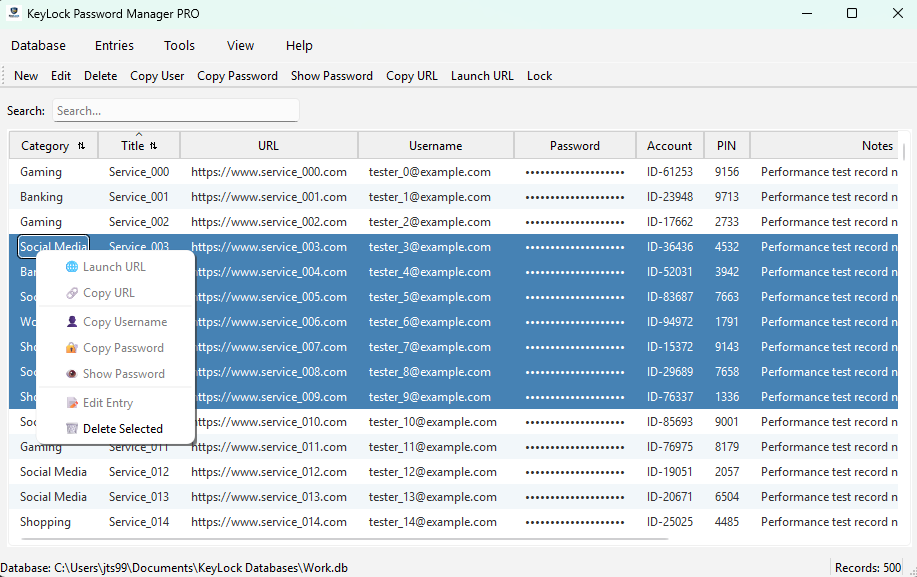
Mouse Right-Click Context Menu: In addition to the toolbar, KeyLock Password Manger PRO features a robust right-click menu. Right-clicking any record in the Table View provides instant access to Copy User, Copy Password, Copy URL, Launch URL, Edit Record & Delete Records.
Detailed Menu Functionality
Database Menu
-
New Database (Ctrl+N): Initiates a secure wizard to create a fresh Database. This includes a mandatory security warning, master password setup, and optional hint creation.
-
Open Database (Ctrl+O): Allows you to navigate to and select an existing .db file.
-
Recent Databases: Displays a list of up to 5 previously used databases for rapid switching.
-
Save Database (Ctrl+S): Does a quick save of the open database.
-
Save Database As (Ctrl+Shift+S): Brings up a Explorer screen allowing you to save the current database utilizing a new database name. This also utilizes the same password from the current database. If needed, You can change the password with the menu Database > Change Master Password.
-
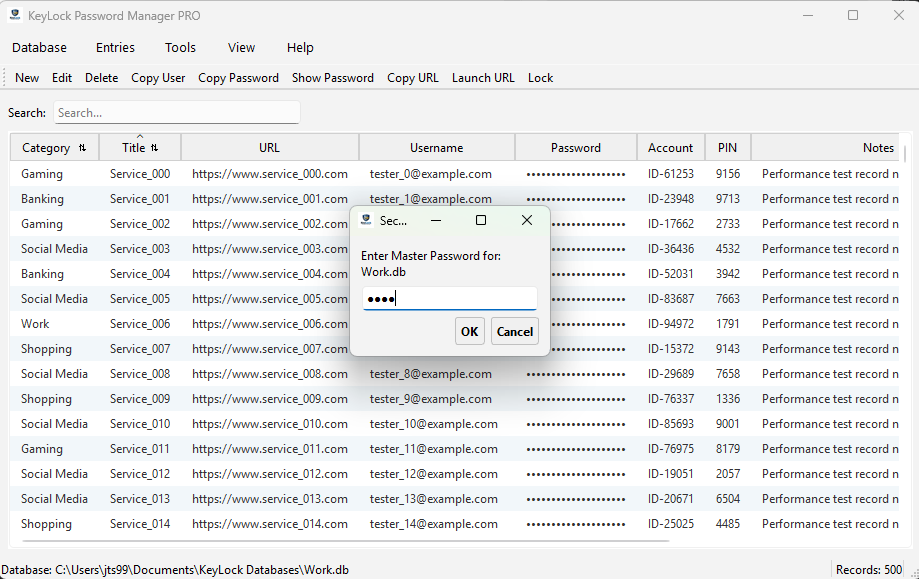
Close Database (Ctrl+W): Safely locks the current database and clears all data from the application’s memory and returns the app to a locked state.
-
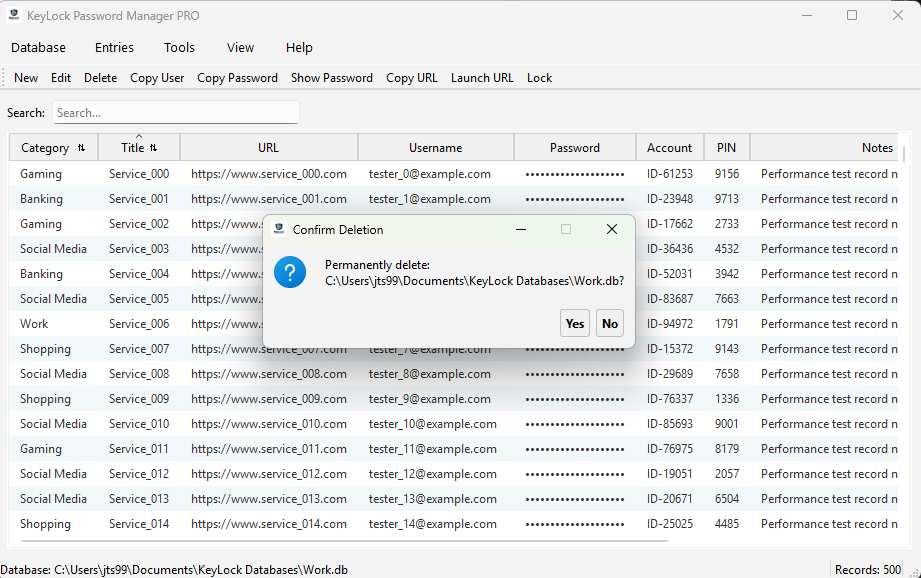
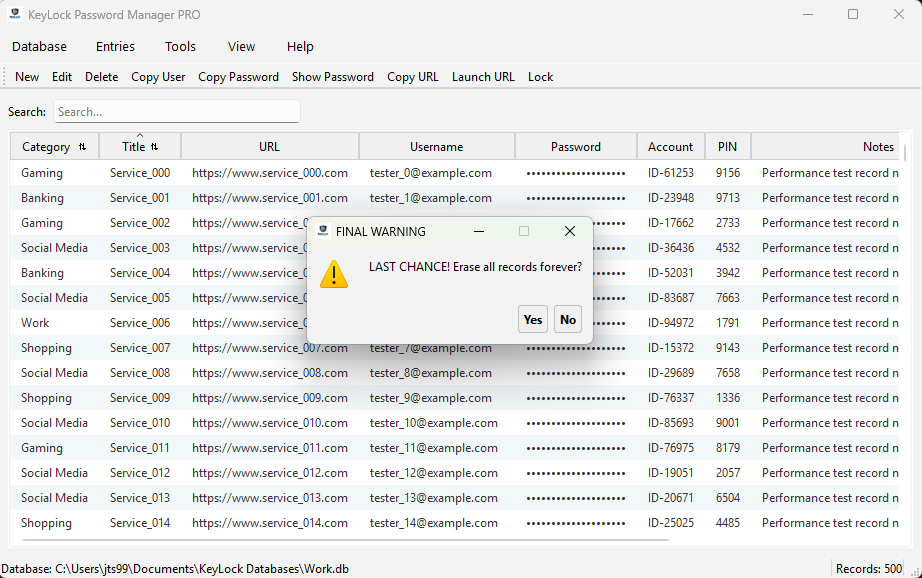
Delete Database: Brings up Explorer view allowing you to delete a database. To delete, you must enter the Master Password, confirm you want to delete the database and one final warning. Use caution, this database and its contents are deleted forever.
-
Lock Database (Ctrl+L): Locks the current database and displays the Password entry screen.
-
Import, Export, & Data Merging: Support for CSV files to allow easy migration from other password managers or to create unencrypted backups (use with caution).
-
Import Logic: Supports the importing of CSV files.
-
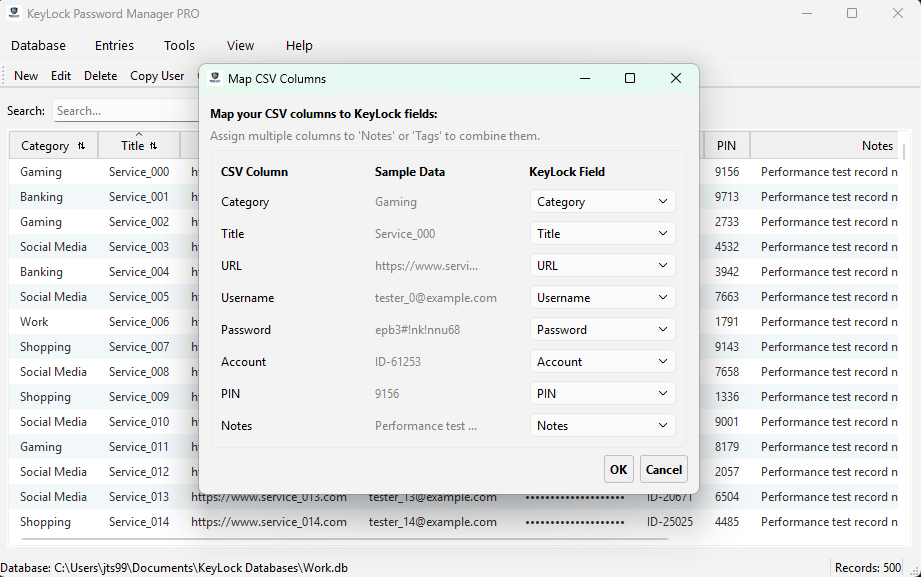
Automatic Data Mapping: With Auto Data Mapping, the app attempts to match columns like "Login" to "Username" and "Pass" to "Password" automatically. For fields that didn’t auto map, you can manually map those fields to available KeyLock fields from the dropdown menus. Auto mapping will also show fields that wont migrate into KeyLock, providing you the opportunity to select to Discard or to Append those records to the Notes field.
-
Data Merging: When importing into an existing vault, KeyLock will automatically perform Duplication checks, Merge Records or Add New Records and provide statistics afterwards. You can also do Ctrl+Z to undo an import.
-
-
Export Logic: Allows you to export your data to an unencrypted CSV file for storing on USB drives or other storage. Warning: Exported files are not encrypted and should be stored securely or deleted immediately after use.
-
Standard CSV
-
Plain Text (.txt)
-
KeyLock Password Manger PRO now supports Selected Record Export. You can highlight specific rows in the table and export only those records to CSV, or TXT, allowing for precise data management.
-
|
Warning
|
Use Caution with Export functionality !!
|
-
Backup: Brings up an Explorer window pre populating the backup filename as: database-name_backup_date_time. Backup files are stored as encrypted .enc files. It is highly recommended that you backup often. You will need to know your Master Password to Restore from backup.
-
Restore From Backup: Brings up an Explorer window showing encrypted (.enc) backup files available to restore. You will need to know your Master Password to Restore from backup.
|
Important
|
Database Concurrency & Sync Conflict Best Practices KeyLock Password Manager PRO does not lock your records inside a remote, centralized web platform. Because your security profile is entirely local-first, synchronization across multiple devices is driven entirely by your cloud folder provider’s standard file-system rules.
|
-
Exit Application (Ctrl+Q): Exits the KeyLock Password Manager PRO application.
Entries Menu
-
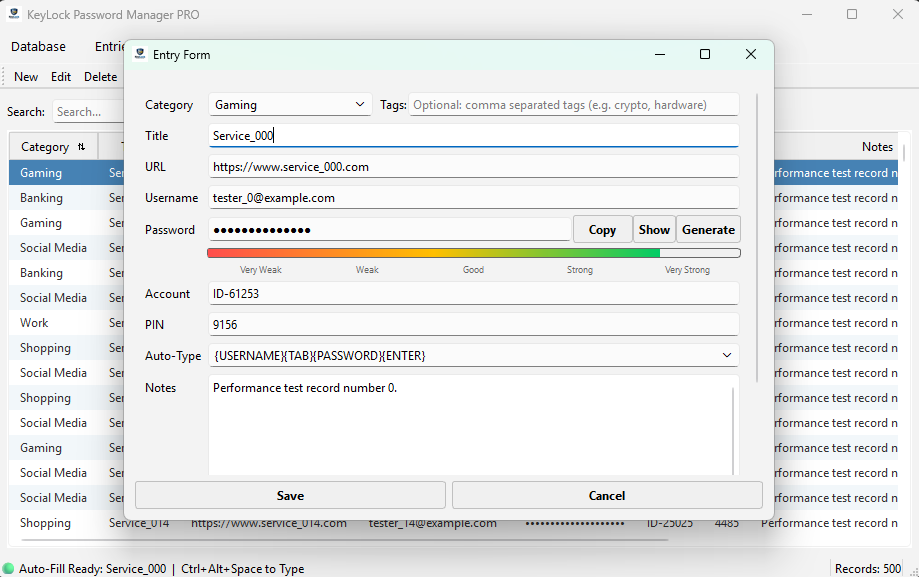
New Record (Ctrl+Shift+N): Opens a window to store a new account, including Title, Category, Tags, URL, Username, Password, Account, PIN, Tags & Notes. Double-Clicking the "URL" field in Table or Record view will open your default browser to that site. The Notes section can store essentially an unlimited amount of text in a scrollable window.
-
Tags: Each record now supports Tags. These are invisible to the main table but act as powerful keywords for the Search feature.
-
Edit Record (Ctrl+E): Pressing this button opens the Entry Form for editing an existing record for such fields as Title, Category, Tags, URL, Username, Password, Account, PIN, Tags & Notes. Double-Clicking the "URL" field in Table or Record view will open your default browser to that site. The Notes section can store essentially an unlimited amount of text in a scrollable window.
-
You can also generate a secure hardened password using the Generate Password button.
-
Multi-Row Selection: You can now select multiple records using Shift+Click or Ctrl+Click. This allows for Bulk Deletion or bulk moves to the Recycle Bin.
-
-
Delete Record (Del): Deletes the current record selected in table view and places it into the KeyLock Recycle Bin.
-
Launch URL When pressed will launch the URL for the selected record.
-
Copy URL: When pressed will copy the URL field information from the selected or open record into the Clip-Board memory. It will remain in memory based on the adjustable setting in the Tools > Settings > Enable clipboard auto-clear. Usually recommended to set this for 15 seconds. After that time, for security best practices the clipboard will be cleared.
-
Copy User: When pressed will copy the User field information from the selected or open record into the Clip-Board memory. It will remain in memory based on the adjustable setting in the Tools > Settings > Enable clipboard auto-clear. Usually recommended to set this for 15 seconds. After that time, for security best practices the clipboard will be cleared.
-
After pressing Copy User, User info is in Clipboard, go to site that you are logging into put your cursor in the User field and press Ctrl-V to paste your User.
-
-
Copy Password: When pressed will copy the Password from the selected or open record into the Clip-Board memory. It will remain in memory based on the adjustable setting in the Tools > Settings > Enable clipboard auto-clear. Usually recommended to set this for 15 seconds. After that time, for security best practices the clipboard will be cleared.
-
After pressing Copy Password, the Password info is in Clipboard, go to site that you are logging into put your cursor in the Password field and press Ctrl-V to paste your password.
-
-
Show Password: Passwords are masked however you can press Show Password and the highlighted record in table view or the open record view will reveal the password for that record.
-
Undo Last Change (Ctrl+Z): Will undo your last change.
-
Auto-Fill and Custom Auto-Type
-
KeyLock Password Manger PRO introduces a powerful automation suite to eliminate manual typing for logging into applications and websites.
-
-
Custom Auto-Type Sequences
-
Within the Entry Form, you can select pre-defined keystroke sequences from the dropdown menu or you can create/modify your own custom sequences to meet the needs of most all application and website username & password Login sequences. These sequences are simply imitating your keyboard keystrokes when logging into a website or application.
-
Common sequence templates include:
-
{USERNAME}{TAB}{PASSWORD}{ENTER} -
{USERNAME}{ENTER}{DELAY}{PASSWORD}{ENTER} -
{USERNAME}{TAB}{TAB}{PASSWORD}{ENTER} -
{USERNAME}{TAB}{PASSWORD}{TAB}{TAB}{ENTER}
-
-
The Auto-Fill System
-
Arm the Record: Clicking a record once in the table will arm and display "Auto-Fill Ready" in the message bar. If you click that record a second time it will un-arm the Auto-Fill.
-
Global Hotkey: Navigate to your browser or application Login page. Place your cursor into the Username field. Press the Global Hotkey (Default:
Ctrl+Alt+Space). KeyLock will automatically type your sequence into the active username and password Login fields. The default sequence is{USERNAME}{TAB}{PASSWORD}{ENTER} -
Customization: The Global Hotkey can be fully customized in the Tools > Settings menu to avoid possible conflicts with other software on your computer.
-
Tools Menu
-
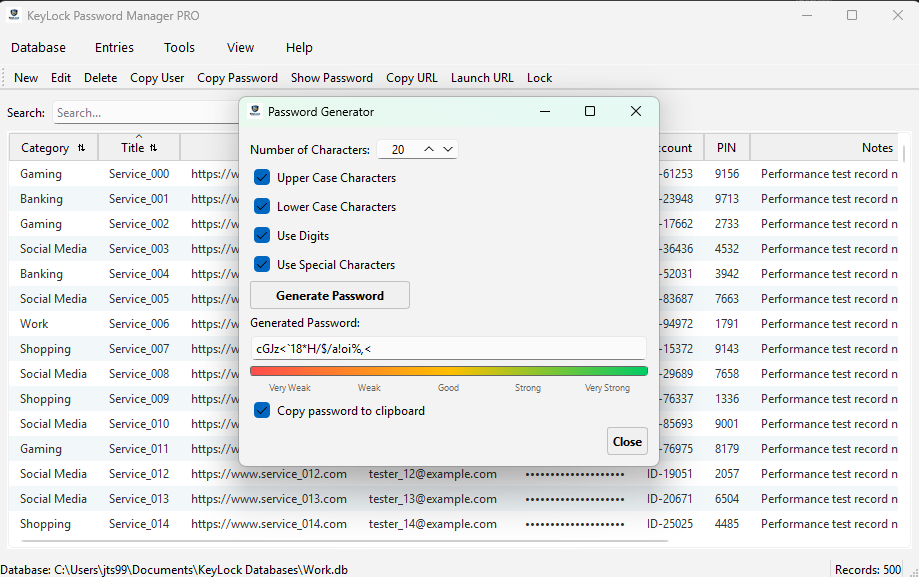
The Password Generator (Ctrl+G): A robust utility to create high-security passwords with real-time strength scoring or you can simply type and create your own password.
-
Length Control: Field to specify the Password length from 8 to 128 characters (default 20 characters).
-
Character Sets: Toggle switches for Uppercase (A-Z), Lowercase (a-z), Numbers (0-9), and Special Symbols (!@#$).
-
Entropy Calculation: Displays a real-time "Strength" score as you adjust settings.
-
-
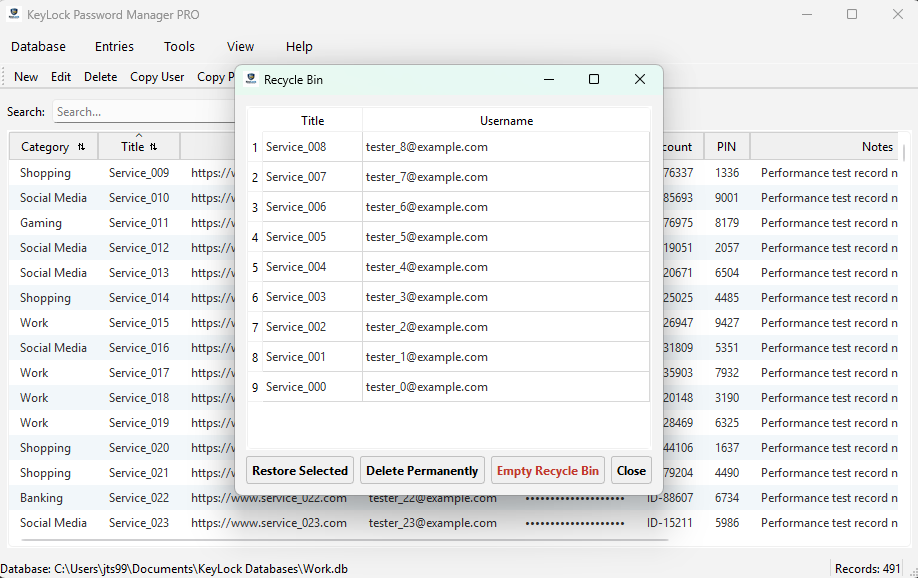
Recycle Bin (Ctrl+R): When you delete a record, it is stored in the Recycle Bin providing you an opportunity to Delete Selected Records, all records Permanently or to Restore Selected Records.
-
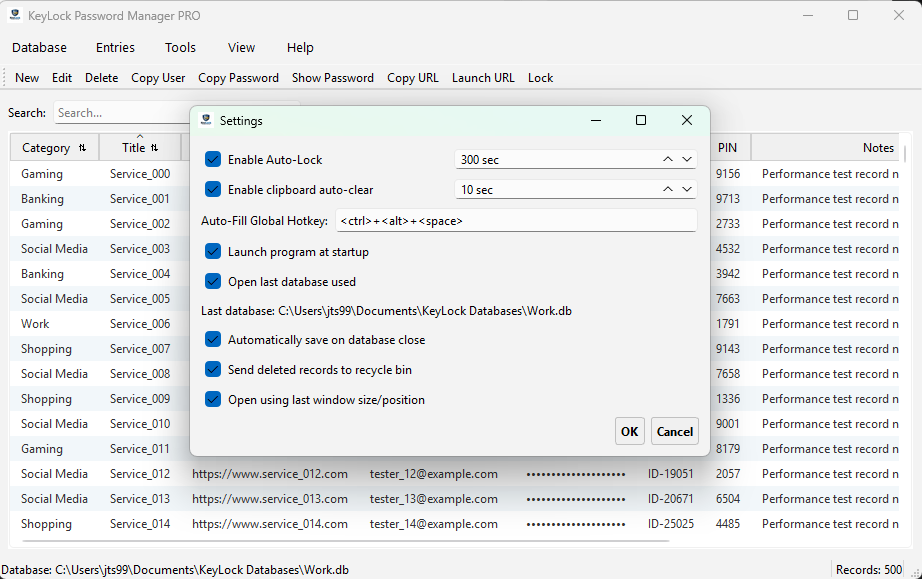
Settings: Includes preferences, such as database auto-lock and clipboard auto-clear timers, meeting security best practices. Settings for global hotkey customizations, launch KeyLock on computer startup, open last database used, auto-save on close and remembering the KeyLock screen position and window size.
View Menu
-
Search Functionality
-
Customized Search (Ctrl+F): Located on the left right below the ribbon bar, the search bar provides a real-time search filter. To really narrow your searches: (Example: Work Healthcare) Type Work which will narrow the records down to Work records. Then press space and type Healthcare. The search will then narrow even further down to Healthcare related Work records.
-
Tag Integration: The search engine now scans the Tags field in addition to Title, Category and Notes, allowing you to find groups of related accounts (e.g., searching "Insurance" to find all your Insurance records)
-
-
Themes Select either Light mode or Dark Mode. KeyLock will remember your selection.
Help Menu
-
User Manual (F1): An online version of the KeyLock Password Manager PRO User Manual
-
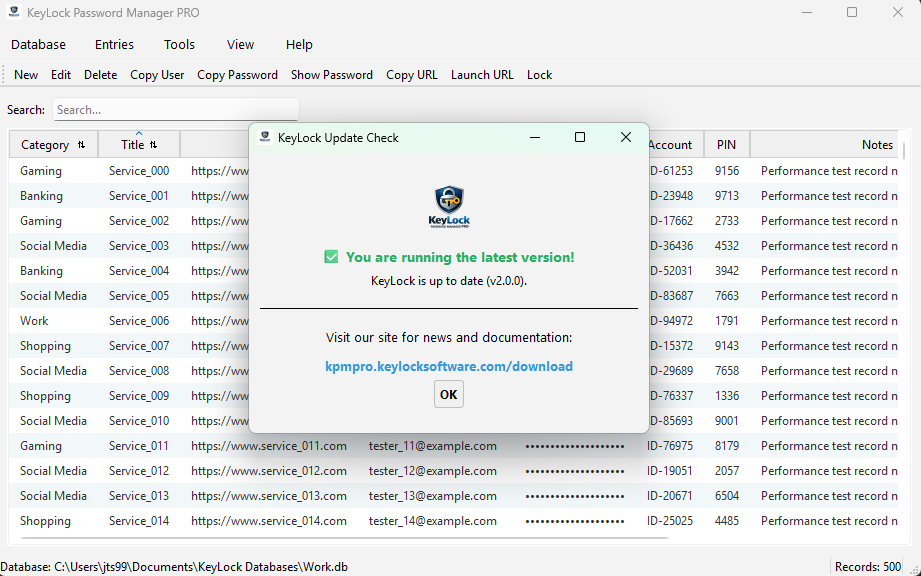
Check for Updates (Ctrl+U): This will check your current version against the latest version available and let you know if there is a newer KeyLock Password Manager PRO application available for download.
-
Report a Bug Pressing Report a Bug opens a GitHub trouble ticket for you to complete. We may come back to you requesting more information. We will provide you feedback on our determination.
-
Suggest a Feature Pressing Suggest a Feature opens a GitHub new ticket for you to describe the feature you would like to see. We may come back to you requesting more information. We will provide you feedback on our determination.
-
KeyLock Password Manager PRO Keyboard Shortcuts
-
Navigation
-
Select All (Ctrl+A)
-
Search (Ctrl+F)
-
-
File & Vault
-
New Database (Ctrl+N)
-
Open Database (Ctrl+O)
-
Save Database (Ctrl+S)
-
Save Database As (Ctrl+Shift+S)
-
Close Database (Ctrl+W)
-
Lock Database (Ctrl+L)
-
-
Records
-
New Record (Ctrl+Shift+N)
-
Edit Record (Ctrl+E)
-
Edit Selected Entry (Enter)
-
Delete Record (Del)
-
Undo Last Change (Ctrl+Z):
-
-
Tools
-
Online Getting Started Guide (F2)
-
Online User Manual (F1)
-
Passwprd Generator (Ctrl+G)
-
Open Recycle Bin (Ctrl+R)
-
Exit Application (Ctrl+Q)
-
-
Donate
-
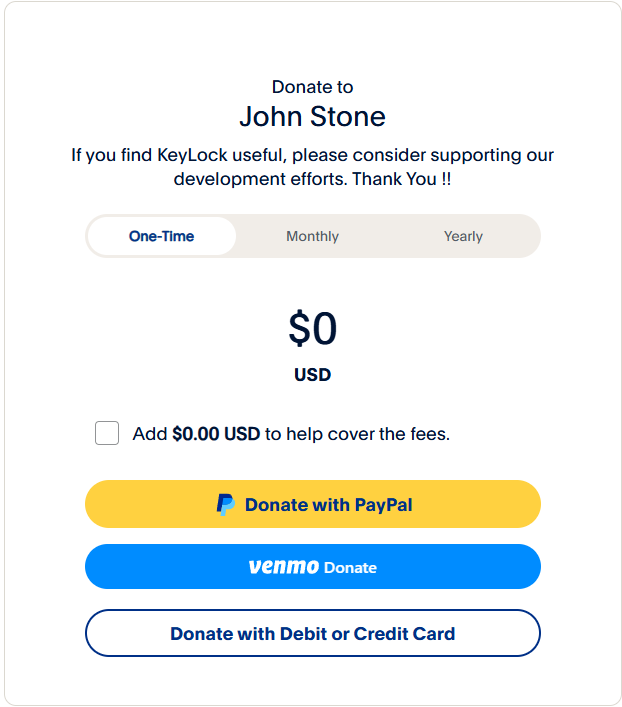
Thank you for using KeyLock, if you are finding this program useful, please consider supporting its development by donating any amount that you are comfortable with. We appreciate your generosity…
-
Currently we offer the ability to take donations through Venmo and PayPal.
-
Venmo Donation: On your mobile device go to your Venmo application and search for @JohnStone996
-
PayPal Donation: Are easily done through this web-link:
-
About
-
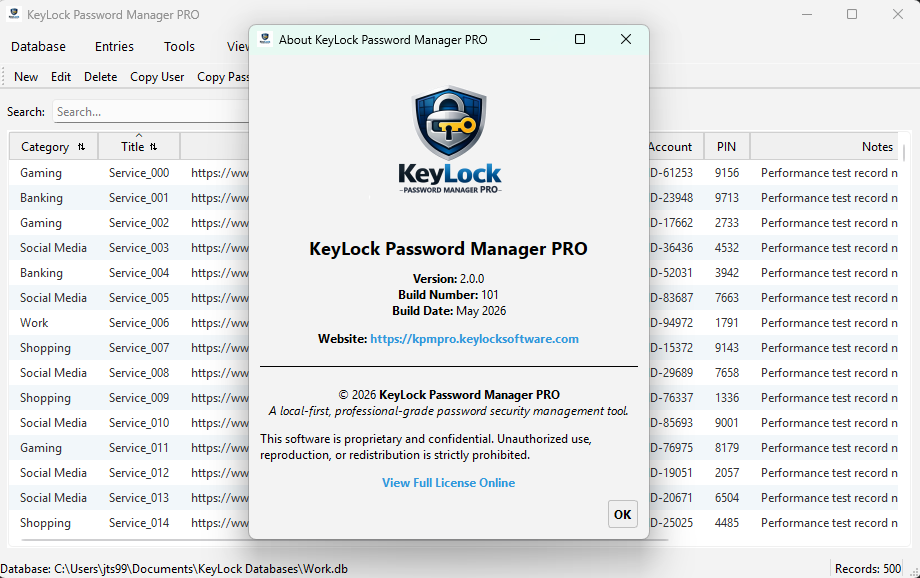
Shows the current Keylock Password Manager PRO Version Number, Build Number, Build Date, Copyright and GNU General Public License https://www.gnu.org/licenses/gpl-3.0.txt as published by the Free Software Foundation, either version 3 of the License, or (at your option) any later version.
The Ribbon Toolbar & Search Functionality
-
Located directly below the menus, quick-action buttons are available to manage the currently selected record.
-
New (Ctrl+Shift+N): Pressing this button opens the Entry Form for entering a new record including Title, Category, Tags, URL, Username, Password, Account, PIN, Tags & Notes. Double-Clicking the "URL" field in Table or Record view will open your default browser to that site. The Notes section can store essentially an unlimited amount of text in a scrollable window.
-
You can also generate a secure hardened password using the Generate Password button.
-
Edit (Ctrl+E): Pressing this button opens the Entry Form for editing an existing record for such fields as Title, Category, Tags, URL, Username, Password, Account, PIN, Tags & Notes. Double-Clicking the "URL" field in Table or Record view will open your default browser to that site. The Notes section can store essentially an unlimited amount of text in a scrollable window.
-
You can also generate a secure hardened password using the Generate Password button.
-
Delete Record (Del): Deletes the current record selected in table view and places it into the KeyLock Recycle Bin.
-
Copy User: When pressed will copy the User field information from the selected or open record into the Clip-Board memory. It will remain in memory based on the adjustable setting in the Tools > Settings > Enable clipboard auto-clear. Usually recommended to set this for 15 seconds. After that time, for security best practices the clipboard will be cleared.
-
After pressing Copy User, User info is in Clipboard, go to site that you are logging into put your cursor in the User field and press Ctrl-V to paste your User.
-
Copy Password: When pressed will copy the Password from the selected or open record into the Clip-Board memory. It will remain in memory based on the adjustable setting in the Tools > Settings > Enable clipboard auto-clear. Usually recommended to set this for 15 seconds. FAfter that time, for security best practices the clipboard will be cleared.
-
After pressing Copy Password, the Password info is in Clipboard, go to site that you are logging into put your cursor in the Password field and press Ctrl-V to paste your password.
-
Show Password: Passwords are masked however you can press Show Password and the highlighted record in table view or the open record view will reveal the password for that record.
-
-
Launch URL When pressed will launch the URL for the selected record.
-
Copy URL: When pressed will copy the URL field information from the selected or open record into the Clip-Board memory. It will remain in memory based on the adjustable setting in the Tools > Settings > Enable clipboard auto-clear. Usually recommended to set this for 15 seconds. After that time, for security best practices the clipboard will be cleared.
-
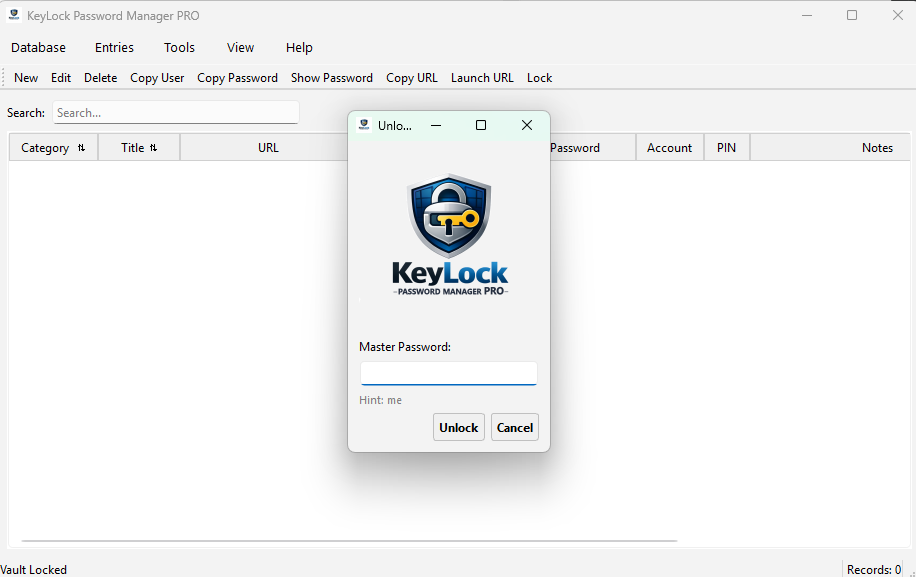
Lock (Ctrl+L): A prominent button that immediately clears the memory and secures the vault. It also displays the Login screen for the Database Master Password as soon as Lock is pressed.
-
-
Search Functionality
-
Customized Search (Ctrl+F): Located on the left right below the ribbon bar, the search bar provides a real-time search filter. To really narrow your searches: (Example: Work Healthcare) Type Work which will narrow the records down to Work records. Then press space and type Healthcare. The search will then narrow even further down to Healthcare related Work records.
-
Tag Integration: The search engine now scans the Tags field in addition to Title, Category and Notes, allowing you to find groups of related accounts (e.g., searching "Insurance" to find all your Insurance records)
-
The Lower Message Bar (Status Bar)
-
The left footer of the KeyLock application provides critical situational awareness:
-
Database Path: Displays the file and data path currently in use Database: Path_Database-Name.db
-
Database Save: Displays a message: Database Saved!
-
Database Close: Displays a message: Database Closed. Then displays: No database loaded. Go to Database > Open to begin.
-
Backup Database: If backup is successful, the message bar displays: Backup Saved with backup filename as: database-name_backup_date_time.enc
-
Restore Database: If restore is successful, the message bar displays: Restore successful database-name_backup_date_time.enc
-
Caps Lock Warning: A monitor that flashes red if CAPS LOCK IS ON, assisting in preventing login errors.
-
Clipboard Auto-Clear: When using the Copy User or Copy Password functionality, the program copies these to the clipboard memory so that you have time to paste them in your login website. The lower message bar displays: Copied! Clearing in 15s… then displays: Clipboard cleared for security.
-
Entry Count: Shows the total number of records in your vault.
-
Legal Terms
-
By downloading and using KeyLock Password Manager PRO, you agree to our core legal policies. Because we frequently update these documents to comply with platform regulations, you can read the live, always up-to-date versions directly on our website using the links below.
-
Privacy Policy
-
Read the official Privacy Policy here
-
-
End User License Agreement (EULA)
-
Read the official End User License Agreement (EULA) here
-